Understanding the Agent Availability Chart
For call center supervisors, evaluating an agent's performance begins with understanding their current activities. Supervisors rarely have the time to physically check on each agent's status—whether they're logged in, on a break, or unavailable for calls. The Agent Availability Chart provides a clear and concise overview, empowering supervisors to monitor and manage agent activity efficiently. Here's a breakdown of how the chart can help you stay informed about your team's performance in real-time.
First, here is what the Agent Availability Chart might look like...
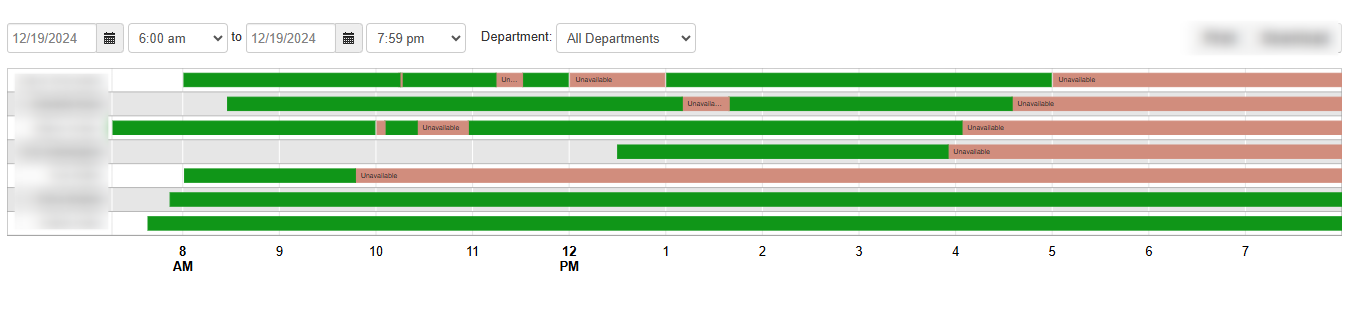
What does it all mean? First, an important detail...if the agents use the web portal, they have access toALL the different status options they can select from. If the agents don't use the web portal but just use a log in/out button on their phone, then theONLY two colorsyou will ever see on the chart are going to be green and salmon. Here is a breakdown of the different status' you may find on the Agent Availability Chart.
- Green - agent is logged in and available to take calls (this does NOT change when an agent is on a call so even when they are on a call they will show as green)
- Salmon - agent is unavailable. This happens when they push the log in/out button on their phone to set their status as unavailable (when you push that button on the phone you actually hear a message that says "you are currently unavailable"). It is the same as selecting the Go Offline option in the web portal.
- Red (only available from the web portal) - agent is in "Lunch" status
- Orange (only available from the web portal) - agent is in "Break" status
- Blue (only available from the web portal) - agent is in "Meeting" status
- Purple (only available from the web portal) - agent is in "Other" status
- Pink (only available from the web portal) - agent is in "Web" status
- Blank (only available from the web portal) - this is when the agent selects the End Shift option in the web portal
In addition to the options above, call center supervisors have the ability to add custom status messages as well.